How to Preview Gopro Videos Before Uploading Them
GoPro Hero cameras, as the best activeness cameras, especially GoPro HERO 7/viii/9 Black, are favored by many extreme sports fans. Attributable to its minor, portable, waterproof features and many other advantages, people often use information technology to capture well-baked 4K/1080p videos in underwater diving, surfing, skiing, cycling, skydiving, etc. Afterwards recording some crazy and intense footage with your GoPro, yous may want to upload your GoPro 1080p or 4K footage to YouTube (or Vimeo, Instagram) in order to make people throughout the world know what you're doing and how you lot feel.
Yet, it's pretty annoying when you shoot some sweet footage (either photo or video) on your GoPro action camera, so, when you lot go to import, consign, or upload it to YouTube, they lose quality. In this article, I will accept yous through some elementary tips and tricks that yous can use to import and upload your GoPro 4K/Hard disk footage to YouTube without losing any quality whatsoever. With better quality videos, your YouTube stories volition smooth.
Method 1. Share GoPro HD/4K footage to YouTube with GoPro App on Your Phone
There is no option to upload and publish directly to sites like YouTube, Facebook, Vimeo, etc., but you tin consign video files using the GoPro App to your Phone then upload them to the site of your choosing. The GoPro app is made especially for GoPro cameras. Yous tin hands have a alive view of what your GoPro camera sees in the GoPro app. You'll exist able to capture photos and videos using the app.
The GoPro app isn't merely for alive view and transferring media from your GoPro camera to your telephone, Too, it has quite a lot of skillful editing tools every bit well. The GoPro app has recently integrated Quik editing and remote control tools that gives users all the functions they need in one place. The new app now allows its users to edit photos and videos directly on the app with ease. The new app pattern now features camera control, a media library that allows editing, a quick moving-picture show editor, and a settings menu.
One of the best new features of the GoPro app is the Horizon Leveling editor. This allows yous to correct the angle and the alignment of your video confronting the horizon. This is helpful if your GoPro photographic camera is mounted on a wheel or drone, or a motorcar. You can get a perfectly leveled shot easily.
The Quik editing software is made for computers, but its features are also included now in the latest GoPro app. In the Quik Story editing section, you will find 10 themes that you tin can choose from. These include calculation an opening title, a closing animation, and a music track. Y'all can also trim videos and plow them into the correct size to your liking.
You volition observe that you can also adjust the ratios into a 16:nine, 1:i, 4:3, or 9:16, prepare for publishing to any social media profile or video streaming platform of your choice. These editing tools may non be the nigh professional tools to edit a full-diddled picture show or brusk film. Merely these are very easy to use and fast for phone apps. Yous will exist able to easily edit more with dissimilar software, but for quick editing, ready for uploading, these tools are very helpful and will suffice.
Once you've got everything done, you can export your the GoPro footage from the GoPro App and so upload it to YouTube on your Phone.
Decision: Although this is an easy and quick way to prepare GoPro footage for uploading to YouTube and other social media sites, you will go quality loss in the uploading process and below are frequently asked questions nigh this:
"But that's the thing.. when I upload to social media similar insta/facebook from phone, the quality is not practiced and I've actually lost the proficient quality."
Uploading GoPro 4K Videos to YouTube with Quality Loss? Why?
In fact, many GoPro camera and YouTube users experience video quality loss. Uploading GoPro HD/4K footage to YouTube may degrade quality for a variety of reasons, from the poor computer configuration, improper 4K video specifications, to bandwidth of network and so on. Allow's have a closer look of the culprit of GoPro 4K video not working properly on YouTube.
ane. Underpowered computer hardware.
If your computer configuration is non strong enough to play GoPro 4K UHD videos, there is a big possibility that YouTube 4K uploading won't get smoothen. You may get stuck on uploading procedure, only taking forever to uploading. Really, updating the figurer graphic cards could be the best option to troubleshoot this. Or else, you tin besides downscale 4K UHD video to 1080p for easier uploading on the existing calculator hardware.
2. Improper 4K video specifications.
"I shot a video on my GoPro hero 9 black in 5k, and when I uploaded it to YouTube it is capped at 1080p. I saved the videos to my phone like you said, taking upwards nearly 16gb of storage equally expected for a 5k video. My YouTube channel has upload in Hard disk drive turned on and it does on my telephone as well. And then at that place's no other settings I can affect in that way. Whatever ideas?"
As mentioned, this user complains that he selected a 5K video from GoPro Hero 9 to upload to YouTube, but information technology only shows in 1080p. That's because the video is non matched with YouTube required video specs. Thus YouTube may car shrink the video within the accepted range.
Yous know, YouTube requires a lot on video specs for uploading. And so does YouTube 4K videos or vlogs. If your GoPro 4K video is in wrong specs, various YouTube errors may arise, such as black screen, YouTube not responding, 4K video quality dropping etc. To ensure a smooth uploading process for GoPro 4K, here are the recommended YouTube GoPro 4K uploading settings from officail site:
Container: MP4
• No Edit Lists (or the video might not get processed correctly)
• moov atom at the front of the file (Fast Start)
Audio Codec: AAC-LC
• Channels: Stereo or Stereo + 5.1
• Sample rate 96khz or 48khz
Video Codec: H.264
• Progressive scan (no interlacing)
• High Contour
• 2 consecutive B frames
• Airtight GOP. GOP of half the frame rate.
• CABAC
• Variable bitrate. No bitrate limit required, though we offer recommended bit rates beneath for reference
• Blush subsampling: 4:ii:0
Frame rate
• Content should be encoded and uploaded in the aforementioned frame rate it was recorded.
• Common frame rates include: 24, 25, 30, 48, 50, threescore frames per second (other frame rates are also acceptable).
• Interlaced content should be deinterlaced before uploading. For example, 1080i60 content should be deinterlaced to 1080p30. 60 interlaced fields per 2d should exist deinterlaced to thirty progressive frames per second.
Bitrate
The bitrates beneath are recommendations for uploads. Audio playback bitrate is not related to video resolution.
| Blazon | Video Bitrate, Standard Frame Charge per unit (24, 25, 30) | Video Bitrate, High Frame Rate (48, l, 60) |
| 2160p (4k) SDR | 35-45 Mbps | 53-68 Mbps |
| 2160p (4k) HDR | 44-56 Mbps | 66-85 Mbps |
three. Network bandwidth.
A great deal of users complained that they've got stuck in 360p, and higher resolutions such as 1080p and 4K take been taken a long fourth dimension to procedure. After 4K video uploaded, 4K selection is not available on YouTube, or YouTube 4K video dropping frames. This does some matter with internet bandwidth.
When you upload a video, it volition initially be processed only in low resolution, usually in 360p, to make sure that a version of the video is published faster. As before long equally the uploading is completed, higher resolutions like 4K starting time processing. It will take a very long time. For instance, an ane-hr-long 4K video at 30fps can take up to 4 hours or more to finish high resolution processing. That's why you lot find 4K option not showing on YouTube every bit before long equally the uploading is completed.
Method 2. Upload GoPro HD/4K Video to YouTube Smoothly with EaseFab Video Converter
To make things easier, we'd like to recommend EaseFab Video Converter for 4K video conversion and editing GoPro 4K/Hd video before uploading to YouTube. Information technology'south available to convert 4K videos taken from sophisticated devices like GoPro, DJI, etc. to MP4, tweak video frame rate, fleck rate, codec, audio etc., trim and crop video and resize GoPro 4K videos for YouTube uploading without any quality loss.
How to Convert & Resize GoPro HD/4K footage for Uploading to YouTube
To brainstorm with, y'all demand to download and install EaseFab Video Converter Windows or Mac version on your computer. The guide below takes the Windows version for an example. Mac version has the same process.
Well, after the downloading is finished, install and fire it upwardly on your computer. At present let's get dorsum to the point to make GoPro video smaller.
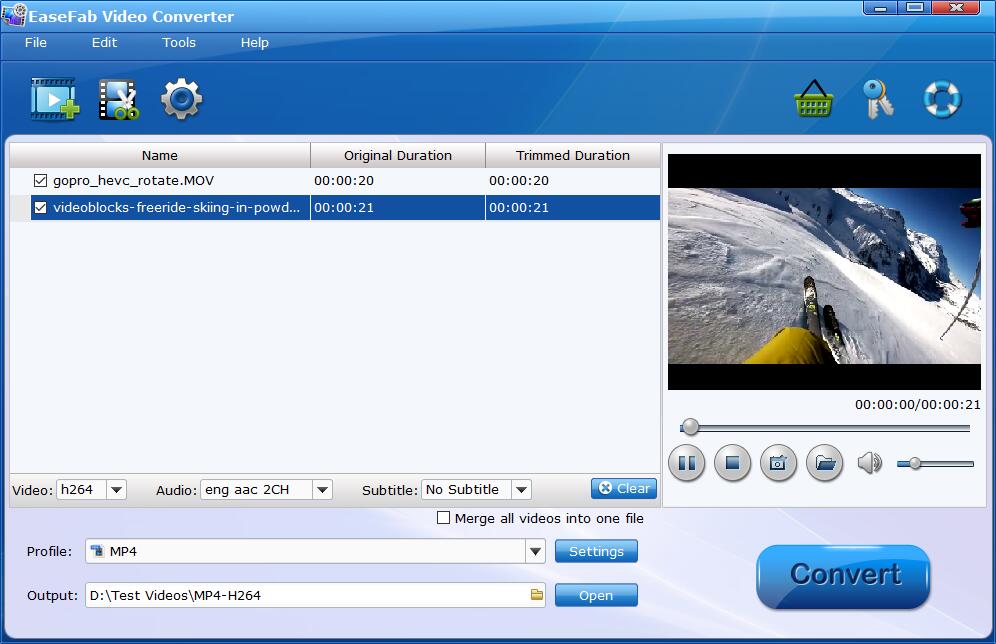
Step one: Import Target GoPro 4K Video
Launch EaseFab Video Convrter and click Add Video button or elevate and drop to load your target 4K video from GoPro Hero 5/six/7/8/nine.
4K footages usually have a file size substantially bigger than a normal Hard disk drive video and can take some programs forever to upload, but EaseFab Video Converter, a professional 4K video converter and editor, with its advanced hardware acceleration, guarantees a loading time within merely a few seconds.
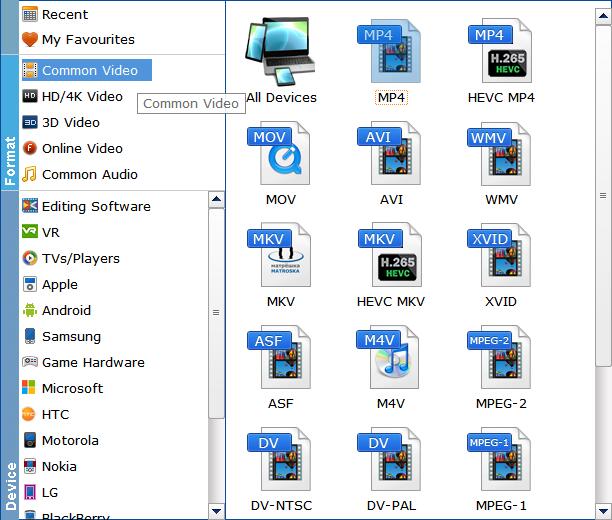
Pace two: Cull MP4 H.264 as Output Format.
Click Profile bar and motility mouse cursor to Common Video category, then select MP4 (codec: h.264+aac) as the output format.
Step 3: Cut and trim your video.
YouTube has a maximum video length of 12 hours, which should outlive nigh of your uploads. But don't even try to upload Exercise some research on videos about the topic you lot want to brand a video for and figure out the video duration your typical audience would feel the near comfy with.
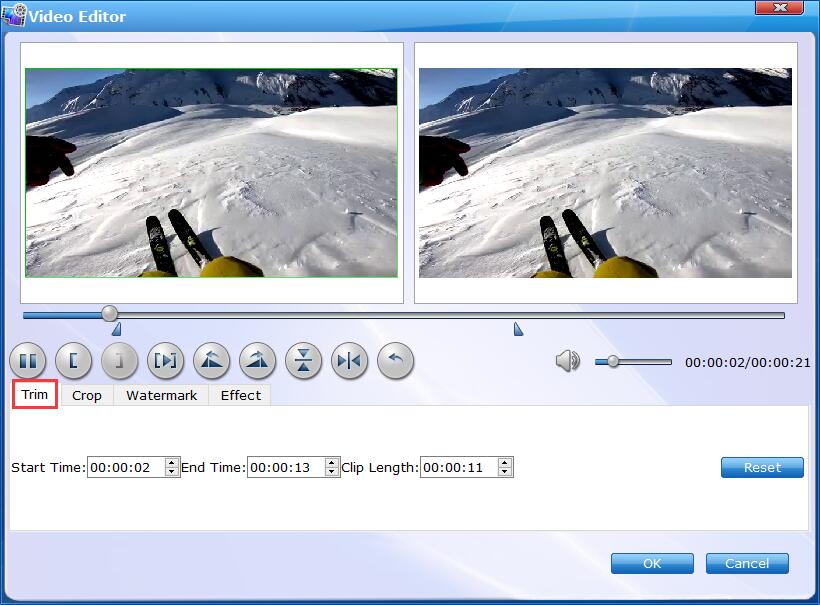
Learn how to utilize EaseFab Video Converter to cutting the unwanted parts from your GoPro 4K footage.
Footstep 4: Crop your GoPro video.
Stick to that xvi:9 aspect ratio when you edit a video for uploading to YouTube. You really desire your videos to evidence upwardly well when users are watching, whether they're watching on desktop or mobile. Information technology's particularly important on mobile– specially with seventy% of views coming from mobile— so that the video tin can calibration properly to full screen, making it easier for users to run across and appoint with.
Yous can follow this guide for the detailed steps nigh how to crop your videos.
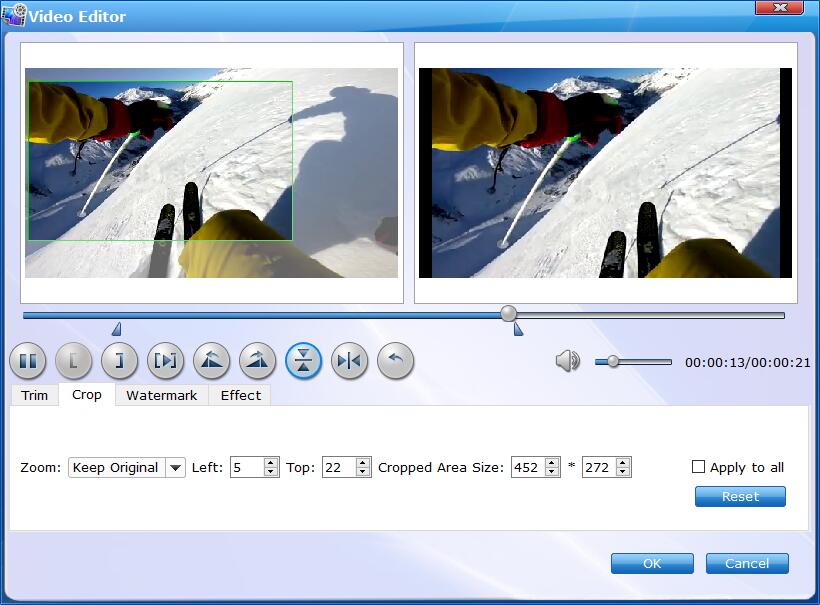
Footstep 5: Tweak GoPro video parameter settings to resize file.
Video encoding settings also have a pregnant influence on your GoPro file size. It covers video resolution, frame rate and bit rate. For the newbies who take picayune or no cognition on how to adapt video parameter settings, you'd better accept a check on the following setting requirements:
Resolution: Up to 8K
Frame Rate: 24, 25, 30, 48, 50, 60FPS
Chip Rate: 35-68Mbps for 4K SDR
44-85Mbps for 4K HDR
16-30Mbps for 2K
8-15Mbps for 1080p
5-nine.5Mbps for 720p
At present you lot can start to accommodate your GoPro video settings grounded on the video site yous wanna upload video to. Allow'south go started.
Head to the main interface and tap "Settings" button enter video setting adjustment window, from where y'all tin can adapt the output GoPro video/audio resolution, frame rate, scrap charge per unit, etc. to customize the output files to get the best quality yous want.
* Resolution: Y'all don't need to adjust the parameter of the GoPro 4K resolution if you desire to keep the video resolution as 4K, merely keep original.
* Frame Charge per unit: To resize GoPro 4K video, you shouldn't ignore this setting. More often than not, you can consider to change frame rate from 60FPS to 30FPS, 240FPS to 120FPS or even lower to downsize GoPro file.
* Bit Rate: Higher in bitrate , larger in file size. yous'll be surprised to find that the bit rate reaches 80Mbps in your GoPro 4K 60FPS video with Protune issue. How large would it exist in file size! Withal, to keep a good balance between file size and quality, chip rate aligning is supposed to proceed inside a certain range. Approximately 20%-forty% lower is best. For instance, turn downwardly GoPro 4K video from 80Mbps to 48/64Mbps.
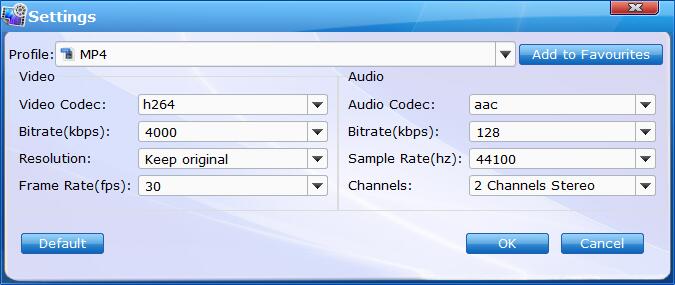
Step vi: Catechumen Your GoPro 4K Video to Run across YouTube 4K Uploading Specs.
When everything is OK, striking the Catechumen button on the main interface to commencement the conversion. It will be accomplished in a very curt time when your computer is embedded with Intel QSV, NVDIA, AMD hardware accelerated GPU.
At present Yous're Able to Upload GoPro 4K Video to YouTube!
1. Click the "Upload video" button at the top right corner of YouTube page. And then elevate and driblet the file you merely converted.
2. Wait for the video uploading and processing. And fillfull the Title, Description, Thumbnail, Tags sections.
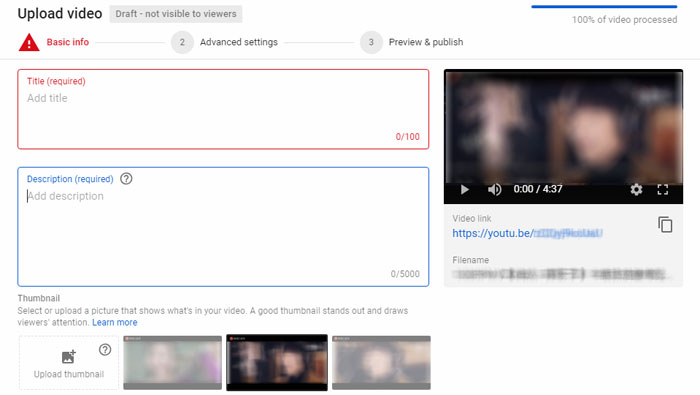
3. Go to the driblet-down menu on the right side the privacy settings allows you to limit the audition who tin can watch your video.
4. Click "Adjacent" for Advanced settings, such as comments, video embedded settings etc.
five. After all that done, check the bar at the top. When it shows 100% of video processed, you're now prepare to publish your GoPro 4K video to YouTube.
wardlawwitheyesse1966.blogspot.com
Source: https://www.easefab.com/gopro-workflow/share-and-upload-gopro-hd-footage-to-youtube.html
0 Response to "How to Preview Gopro Videos Before Uploading Them"
Post a Comment